
Super HomeScreen
lighten appsPersonalization
4.0342.00 Reviews
- Version
- 3.2.7
- Installs
- 1.00M
- Age Rating
- Everyone
Screenshots
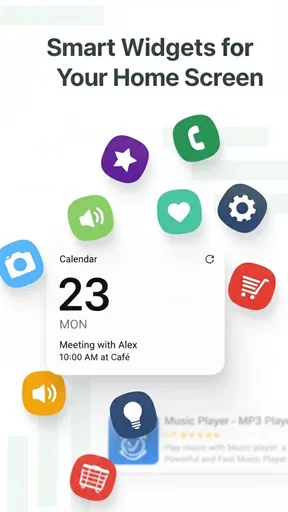
Our Review of Super HomeScreen
 Analysis by Appyee
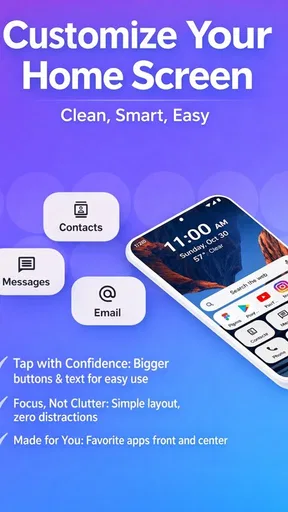
I usually judge a launcher by one simple question: does it help me reach the things I use most without making the phone feel busy? Super HomeScreen takes that approach seriously. It is a free personalization app from lighten apps, built around a cleaner, information-focused home screen rather than a large collection of decorative effects. After spending time with it, I see the appeal immediately: it tries to turn the first screen into a practical dashboard, not just a place where app icons happen to sit.
The idea sounds modest, but it changes how I interact with my phone. A conventional home screen often becomes a growing pile of icons, folders, widgets, and pages. This launcher aims to reduce that visual searching. Its store summary describes an efficient launcher focused on speed and information, while the short description calls it “Super HomeScreen.” In everyday use, that means the app is best understood as a replacement for the standard starting point on Android, with an emphasis on seeing essentials quickly.
It is currently available free of charge and is rated for Everyone, which makes it approachable for a wide range of users. The app has passed the hundred-thousand-install mark and holds a four-point average from roughly seven hundred ratings, with about one hundred fifty written reviews. Those figures suggest a real user base without making the app feel like an unavoidable mainstream default. For me, that is a useful position: established enough to take seriously, but still focused enough to feel different from the biggest launcher names.
How the current version feels in daily use
I find that a launcher is easiest to judge once it has to serve more than one person’s routine. In a shared household, the useful question is whether its focused starting screen helps each user reach their own essentials without assuming everyone wants the same layout. I’d pay attention to how that arrangement fits alongside the habits and boundaries described next.
A home screen designed for quick decisions
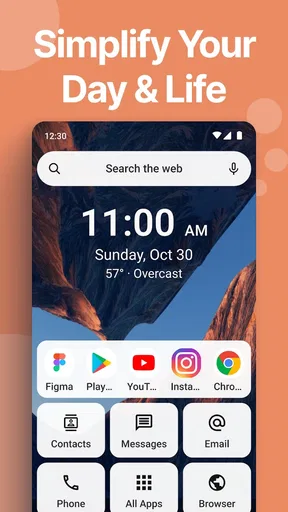
The most convincing part of the experience is the basic workflow. I unlock the phone and want to answer a message, check something important, open a frequently used app, or glance at useful information. A launcher like this earns its place when those actions require less hunting. Super HomeScreen presents itself as an information-first alternative, so its value is not mainly in making the phone look unusual. The value is in reducing the number of small decisions between unlocking and doing something.
That makes it especially suitable for people who treat the home screen as a working surface. I can imagine using it on a phone that serves as a daily organizer: communication apps close at hand, practical tools easy to reach, and less temptation to swipe through several pages of rarely used software. It also suits anyone who finds the default launcher cluttered but does not want to spend an afternoon building an elaborate setup from scratch.
There is a subtle trade-off here. A highly customized launcher can be made to do almost anything, but that flexibility often creates maintenance work. You adjust icon packs, resize widgets, change gestures, rearrange pages, and then repeat the process when your routine changes. Super HomeScreen’s appeal is the opposite. It is more interesting when I let its streamlined structure guide me instead of trying to turn it into a copy of a heavily customized launcher.
A realistic morning scenario
Consider a normal weekday morning. I unlock the phone while getting ready, need to check a calendar item, send a short message, and open a navigation app before leaving. On a traditional setup, I might swipe between pages or open the app drawer for each task. With an information-centered home screen, the goal is to make those first actions visible and predictable. I do not need a dramatic redesign; I need fewer interruptions.
This is where the app’s focus on essentials becomes more meaningful than its short store wording suggests. The launcher is not trying to compete with every possible customization tool at once. It is trying to make the opening view useful. For a person who checks the same handful of apps every day, that can be more valuable than a visually impressive layout that takes longer to navigate.
It can also work well on a secondary device. If I keep an older Android phone for travel, work calls, or family use, I may not want to spend time reproducing my main phone’s entire layout. A focused home screen can make that device easier to understand at a glance. The same applies to someone setting up a phone for a relative who prefers a straightforward starting point over multiple pages and tiny icons.
Who will appreciate the design philosophy
I would recommend trying it first if you want a minimal Android launcher that treats speed and information as the main priorities. It is a good match for users who open the same applications repeatedly, dislike decorative clutter, or want their phone to feel calmer without abandoning access to normal Android apps.
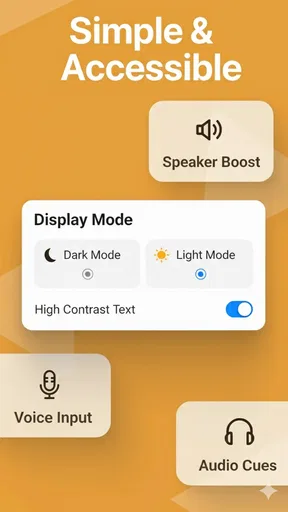
It is less suitable for someone whose main reason for installing a launcher is visual experimentation. If your ideal setup includes extensive animation controls, elaborate gesture mapping, detailed icon customization, or a large ecosystem of themes, a more established customization-heavy alternative may be a better fit. Super HomeScreen’s identity is strongest when the phone feels organized and direct, not when the launcher is itself the hobby.
What the version history tells me
The current release is version 3.1.3, and the app was released on August 28, 2025. That places the product in a relatively early stage compared with launchers that have been refined for many years. I see the version number as a sign that the developer, lighten apps, is actively shaping the experience rather than presenting a finished legacy utility that only receives occasional maintenance.
That does not prove that every part of the launcher will suit every phone. It does, however, affect how I evaluate it. I would approach the current build as a focused product with room to mature. The central idea already makes sense, but users who depend on very specific launcher behavior should spend time testing their own routine before moving permanently from the default home screen.
The important distinction is between what is visible now and what might come later. The current version gives me a reason to try the app because its direction is clear: a faster, more informative starting screen. Future development could make that direction more polished, but I would not install it based on imagined features. I would install it because the present approach solves a real problem for people who feel their home screen has become noisy.
How existing users may experience the change
Switching launchers is never completely frictionless. Even a simple replacement changes muscle memory. I know where my usual icons are on the default launcher, and moving them into a new structure can briefly make routine actions feel slower. That initial adjustment is not necessarily a flaw in Super HomeScreen; it is the cost of changing the front door of the phone.
My advice is to treat the first session as an observation period rather than a final verdict. I would begin with the apps I use every day and pay attention to how often I reach for search, the app drawer, or a secondary page. If the launcher makes those actions more predictable after a short adjustment, it is doing its job. If I keep fighting the layout because I need a very personal arrangement, the default launcher or another alternative may be more comfortable.
One practical workflow is to keep the old arrangement in mind before switching. I would note the small group of apps that matter most, then rebuild only that core instead of trying to reproduce every icon. This avoids turning setup into a project and gives the launcher’s information-focused design a fair test. It also reveals an important strength: whether the app helps me decide what belongs on the first screen and what can remain out of sight.
Users who depend on familiar Android conventions may notice another adjustment. A focused launcher can make the home screen feel more intentional, but that also means it may not behave exactly like the manufacturer’s original interface. I would be especially careful on a phone where I rely heavily on brand-specific home-screen tools. The best choice depends on whether I value a consistent manufacturer experience or a cleaner independent starting point.
Useful ways to get more from the setup
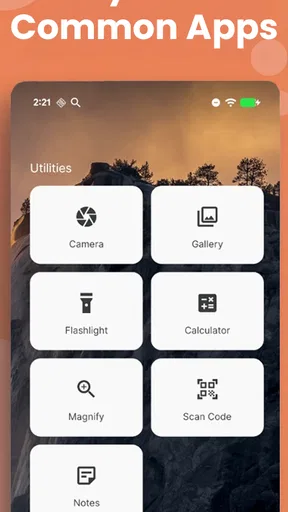
My first tip is to use the home screen as a priority filter, not a storage shelf. Instead of placing every frequently installed app in view, I would keep only the actions that matter during the day. Banking, messaging, maps, notes, camera, and work tools may deserve immediate access; rarely opened games or shopping apps do not necessarily need to compete for attention. This makes the launcher’s central idea more effective and prevents the new layout from becoming another crowded page.
My second tip is to judge the app at different moments, not only when the phone is idle. I would test it during a rushed morning, while moving between tasks, and when I need an app I have not opened recently. A launcher can feel elegant during setup but become awkward when I am in a hurry. Those situations expose whether its information-first arrangement genuinely saves time or simply looks tidy.
A third useful approach is to separate glanceable information from action-heavy tasks. The home screen should answer quick questions without forcing me to open several apps, while tools that require concentration can remain one step away. This distinction helps avoid overloading the first screen. It also gives me a clearer way to assess the app: does it show enough to orient me, while keeping the route to an action short?
I would also test the launcher after a few days rather than changing it constantly. Frequent rearrangement makes it impossible to know whether the layout is helping. A short settling-in period lets muscle memory develop. If the same actions still feel awkward after that period, I would take the result seriously instead of assuming I have not customized it enough.
Where the remaining gaps matter
The biggest limitation is the same quality that makes the app attractive: focus. A launcher built around speed and information may not satisfy users who want a complete personalization platform. People who enjoy fine control over every icon, transition, gesture, folder, and visual detail may find the experience too narrow. That is not a criticism of the concept, but it is an important compatibility issue.
There is also a learning cost whenever a launcher changes the relationship between the first screen and the app list. Users with years of habit built around a manufacturer’s layout may initially feel less efficient, even if the new design is objectively cleaner. I would not recommend switching immediately before travel, an important work period, or any situation where dependable access matters more than experimentation.
Another gap is that a compact home screen can expose differences in personal priorities. What counts as an essential app varies widely. A student, a parent, a photographer, and a delivery worker may all need different information in front of them. If the app’s structure matches your routine, that specificity is a strength. If it does not, you may spend more time adapting than benefiting.
For that reason, I would skip it if your current launcher already feels fast, readable, and easy to maintain. Installing a new home screen only makes sense when it addresses a real irritation. I would also look elsewhere if advanced visual customization is the main goal, or if your daily workflow depends on manufacturer-specific home-screen behavior that you do not want to replace.
What I would watch as the product evolves
Because the app is at version 3.1.3 and comes from a developer called lighten apps, I would watch how consistently the core experience develops. The most valuable progress would not necessarily be a long list of flashy additions. I would rather see the essential view become more adaptable without losing its simplicity, especially for people whose routines differ from the developer’s intended use.
I would also pay attention to how future releases handle the balance between information density and calm presentation. Showing more items can make a launcher feel powerful, but it can also recreate the clutter it was meant to remove. The best evolution would preserve quick recognition: I should be able to understand the screen immediately instead of decoding a dashboard.
Existing users should watch for changes that affect their established habits. A launcher becomes part of a daily routine, so even a well-intentioned redesign can feel disruptive if it moves important actions. New users, meanwhile, should look for signs that the app is becoming easier to tailor without turning into a complicated setup tool. That balance will determine whether it remains a focused alternative or expands into a more conventional customization product.
My recommendation after using it
Super HomeScreen is a thoughtful choice for a specific kind of Android user: someone who wants the first screen to be useful, quick, and information-rich without spending hours designing it. I like that its identity is easy to understand. It is not asking me to admire a theme; it is asking whether my phone can help me get to essential actions with less visual noise.
The free price removes the main barrier to testing it, and the Everyone age rating makes it easy to consider for a broad household. Its four-point average and growing install base provide some reassurance that the concept has found an audience, although I would still judge it against my own routine rather than popularity alone. The current version feels like a product worth trying, especially if the standard launcher has become cluttered or slow to navigate.
My final advice is simple: install it when you are ready to evaluate your habits, not when you are looking for instant decoration. Give it a fair trial with a small set of daily tasks, keep the first screen focused, and notice whether you reach information and apps more naturally. If your priority is a calmer, faster starting point rather than endless customization, this launcher deserves a place on your shortlist. If you want total control over every visual and behavioral detail, I would choose a more mature customization-oriented option instead.
Privacy and Permissions
See what permissions an app requests and how it handles your data.
- Contacts
- read your contacts
- Phone
- directly call phone numbers, read phone status and identity
- Photos/Media/Files
- read the contents of your USB storage
- Storage
- read the contents of your USB storage
- Camera
- take pictures and videos
- Wi-Fi connection information
- view Wi-Fi connections
- Device ID & call information
- read phone status and identity
- Other
- view network connections, pair with Bluetooth devices, expand/collapse status bar, full network access, run at startup, set wallpaper, draw over other apps, control vibration, prevent device from sleeping, Google Play license check
Verdict
Strengths of Super HomeScreen
- Clean layout makes apps easy to find.
- Useful customization options for arranging the home screen.
- Supports quick access to frequently used apps.
- Runs smoothly on most modern Android devices.
- Minimal design keeps the interface visually uncluttered.
Limitations of Super HomeScreen
- Some advanced features may require in-app purchases.
- Customization choices can feel limited for power users.
- May use extra battery compared with the default launcher.
- Occasional compatibility issues may appear after system updates.
- Not all widgets may work perfectly with the launcher.
Similar Picks in This Category
View All
Microsoft SwiftKey AI Keyboard
SwiftKey4.3

Wallpapers
Google LLC4.1

Zedge™ Wallpapers & Ringtones
Zedge4.7

Yandex Browser with Alice AI
Direct Cursus Computer Systems Trading LLC4.3

Ringtone Maker:create ringtone
Big Bang Inc.4.7

Fonts Keyboard
Fonts Keyboard3.9
Frequently Asked Questions
What is Super HomeScreen and what does it do?
Super HomeScreen is an Android customization app designed to change the appearance and organization of your device’s main screen. It can provide an alternative launcher-style experience with options for arranging apps, accessing shortcuts, and personalizing the home screen. Before installing it, check whether its features are compatible with your Android version and whether it will replace or work alongside your phone’s default launcher.
Is Super HomeScreen free to download and use?
Super HomeScreen may be available as a free download, but the exact features and usage conditions can depend on the version obtained and the developer’s current distribution model. Some customization tools may include advertisements, optional purchases, or limitations. We recommend reviewing the Google Play listing, permissions, ratings, and in-app purchase information before downloading so there are no surprises after installation.
Does Super HomeScreen require special permissions?
A home-screen replacement or customization tool may request permissions related to displaying content, managing shortcuts, notifications, or becoming the default launcher. The permissions shown can vary according to the Android version and the app’s available features. Carefully review every request during setup and only grant access that seems necessary. If a permission appears unrelated to customization, consider investigating it before continuing.
Will Super HomeScreen affect my phone’s performance or battery life?
The impact of Super HomeScreen depends on your device hardware, Android version, visual effects, widgets, background services, and the number of shortcuts or panels you configure. On newer phones, basic launcher functions should generally feel responsive, while older devices may experience slower transitions or increased battery use. If performance changes after installation, reduce animations, remove unnecessary widgets, or return to the default launcher.
Can I uninstall Super HomeScreen and restore my original home screen?
Yes, you can normally remove Super HomeScreen through your Android settings like any other installed application, provided it is not protected by device-management settings. Before uninstalling, open your launcher settings and select the phone’s original home app if necessary. Your installed applications should remain on the device, but custom layouts, shortcuts, widgets, and visual preferences created inside Super HomeScreen may not be preserved.
